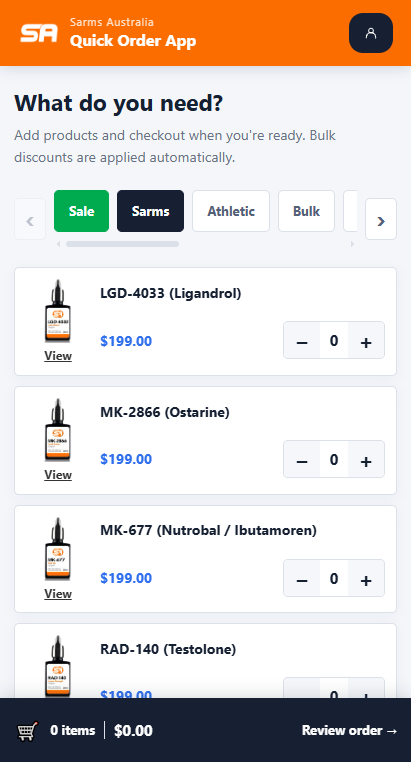
SA app installation
Android (Chrome)
Tap Install app and confirm the install prompt. It may take a moment. Check your notifications for confirmation, then tap Open app or find it in your apps or home screen.
iPhone / iPad (Safari)
▪︎ Open the browser menu (3 dots / lines) ▪︎ Tap Share then Add to Home Screen ▪︎ Enable Open as Web App ▪︎ Tap Add If you don’t see Add to Home Screen: ▪︎ Scroll to the bottom of Safari's menu ▪︎ Tap Edit Actions or View More ▪︎ Tap Add to Home Screen ▪︎ Enable Open as Web App ▪︎ Tap Add
Install failed or need to install again?
Android (Chrome) If no install prompt appears or it didn't install correctly, we suggest using Chrome and following the steps below: ▪︎ Open the browser menu (3 dots in top right) ▪︎ Tap Install and create shortcut ▪︎ Tap Install (not create shortcut)
iPhone / iPad (Safari) We suggest using Safari and following the steps below: ▪︎ Open the browser menu (3 dots / lines) ▪︎ Tap Share then Add to Home Screen ▪︎ Enable Open as Web App ▪︎ Tap Add If you don’t see Add to Home Screen: ▪︎ Scroll to the bottom of Safari's menu ▪︎ Tap Edit Actions or View More ▪︎ Tap Add to Home Screen ▪︎ Enable Open as Web App ▪︎ Tap Add